 Mark
Mark
The nicest place to write Markdown on the command line.
A full-colour editor and viewer with a live split preview — tables, diagrams, pictures and all — that looks like Mark on your Mac and iPhone. Free.
Free for macOS and Linux. Then run mark notes.md.
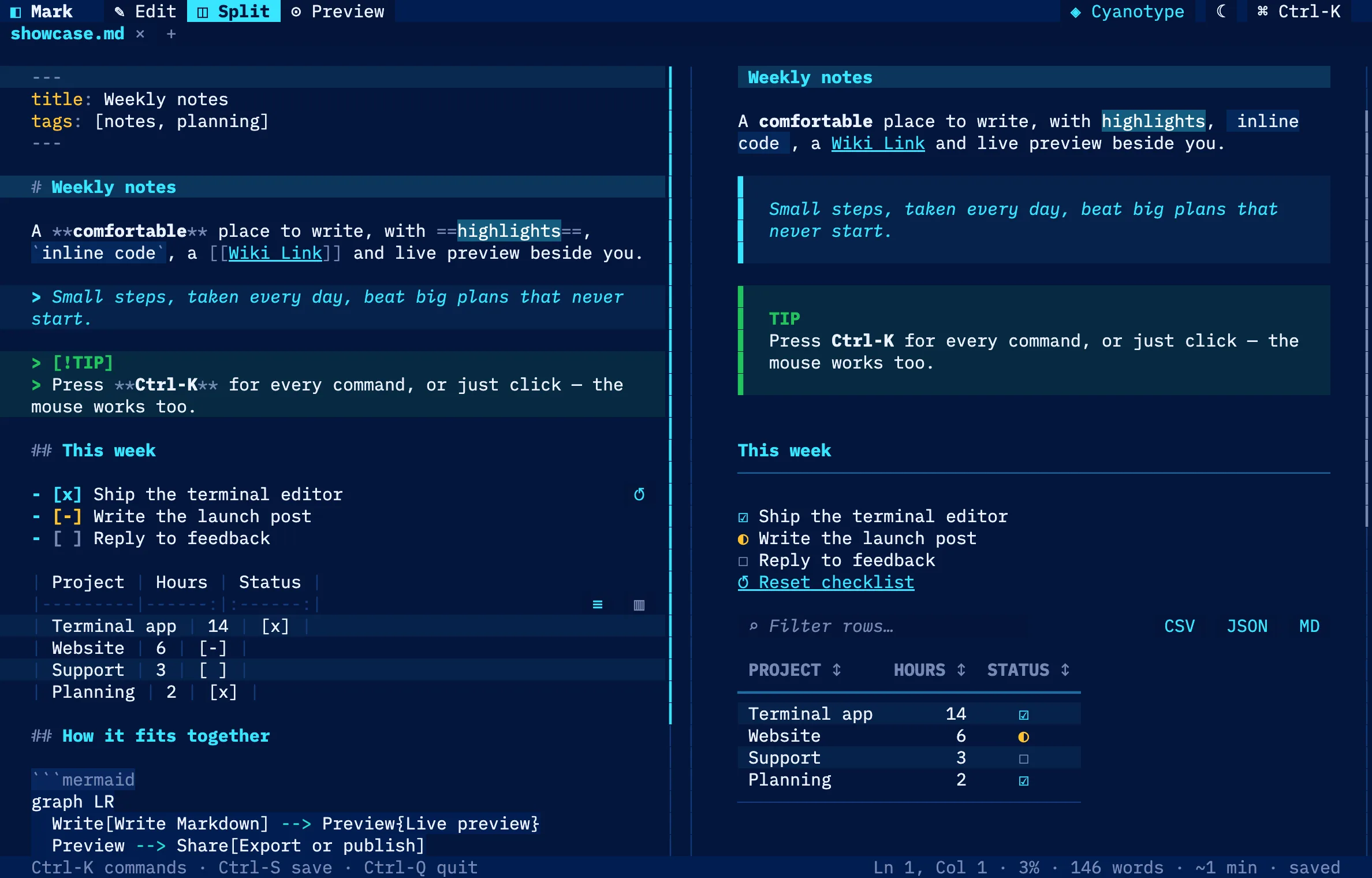
Mark, running right here in your browser
This is the real terminal app, compiled to WebAssembly — nothing to install. Type, switch layouts, press Ctrl-K for the command palette. Anything you write stays in this browser.
Best with a keyboard. Open it full screen · nothing leaves your browser.
All of Mark's writing comfort, without leaving the shell
Open a file over SSH, take daily notes in your terminal, or read a README in colour — the same Markdown as the app, with the mouse optional.
Split, live preview
Edit on the left, see the rendered page on the right — with scroll sync and a divider you can drag almost all the way to either edge. Split works from 41 columns up; narrower than that, Mark falls back to one pane automatically.
Looks like Mark
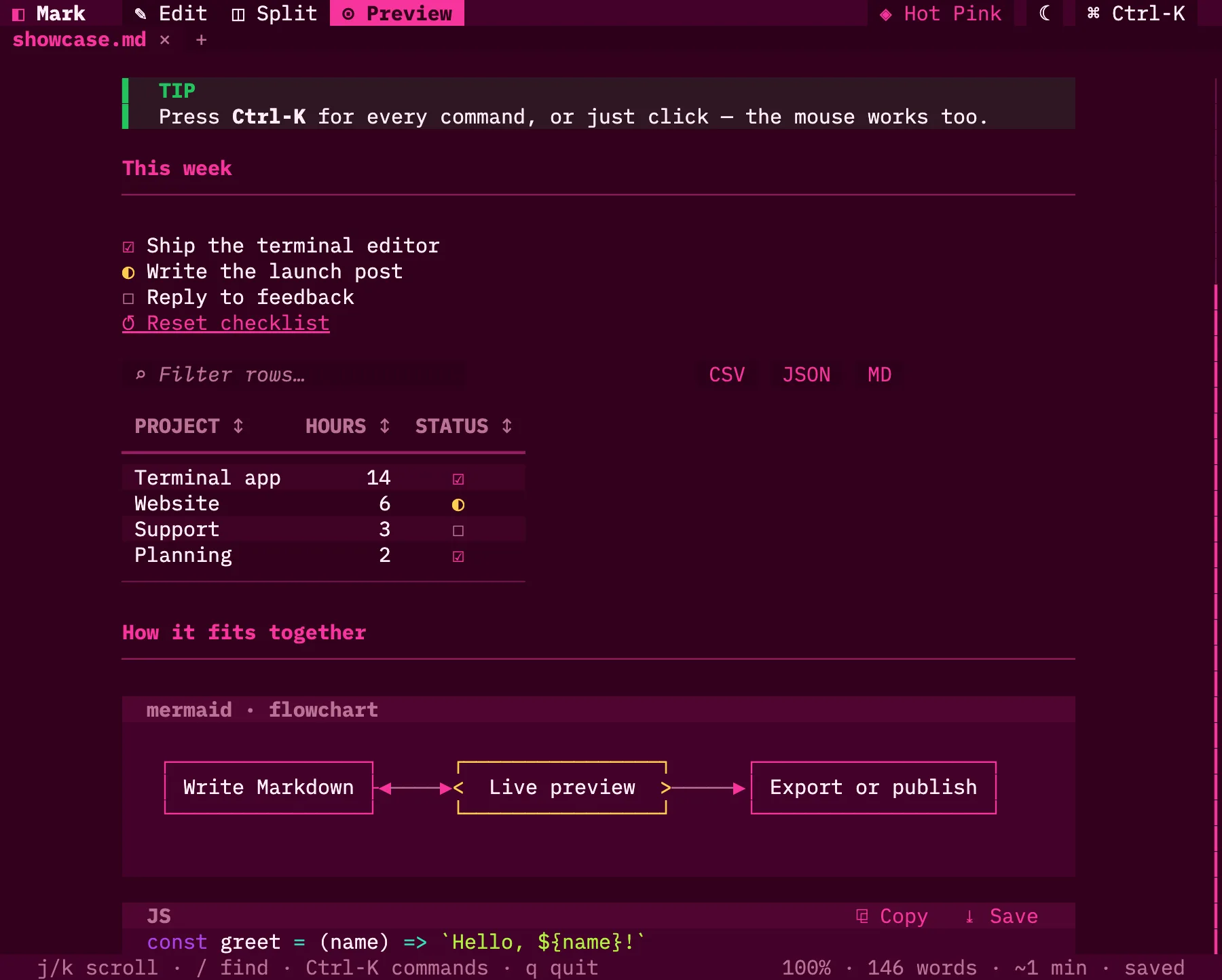
The same headings, callouts, tables, code cards and six colour themes — light and dark — as the Mac and iPhone app, drawn in true colour.
Tables that work
Click a header to sort, type to filter, drag an edge to resize, expand wide ones full-screen, copy as CSV, JSON or Markdown.
Pictures and video
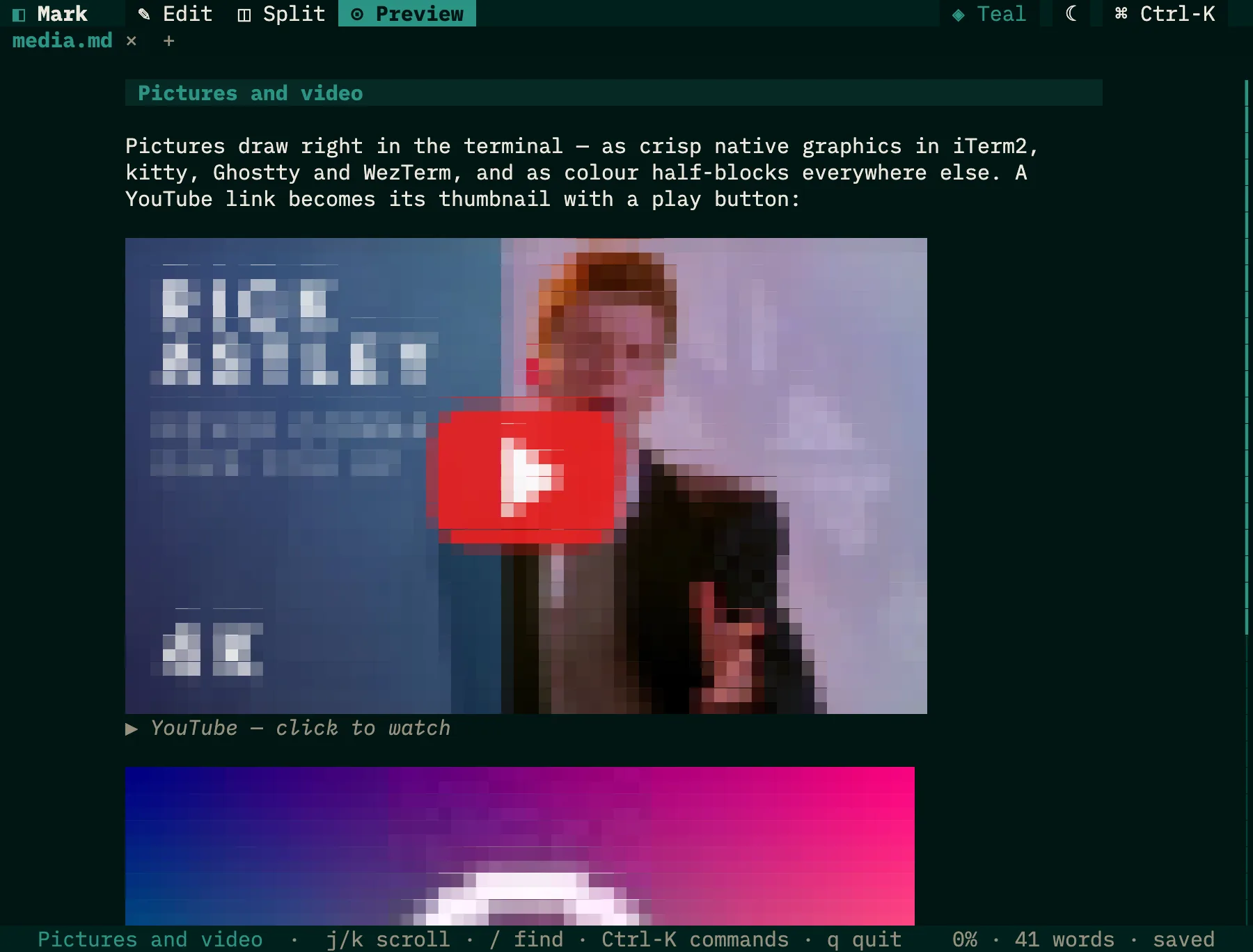
Images appear inline — crisp in iTerm2, kitty, Ghostty and WezTerm, colour half-blocks anywhere else. YouTube links become thumbnails with a play button.
Diagrams, no browser
Mermaid flowcharts, sequence, state, class, ER, pie, Gantt, mindmap and timeline diagrams are drawn right in the terminal, in your theme's colours.
Keyboard first
Every feature has a key, and Tab walks the preview's links, checkboxes and buttons. Ctrl-K opens a command palette that needs no memorising.
Wiki-links, embeds, tabs
[[Wiki-links]] jump between notes, ![[embeds]] pull one page into another, and files open as tabs you can drag to reorder.
Fixes that appear when needed
Tidy tables, renumber lists, reset a checklist, add a missing link definition — small buttons on the exact line they apply to.
Press Ctrl-K, type what you want
Every command — layouts, colour themes, find in files, export a table, compare with the file on disk — lives in one searchable list that shows its shortcut as you go. Nothing to memorise.
- Six colour themes plus any custom accent, light and dark, switchable from the top bar.
- Ctrl-P quick-opens any file in the project; Ctrl-O jumps to a heading.
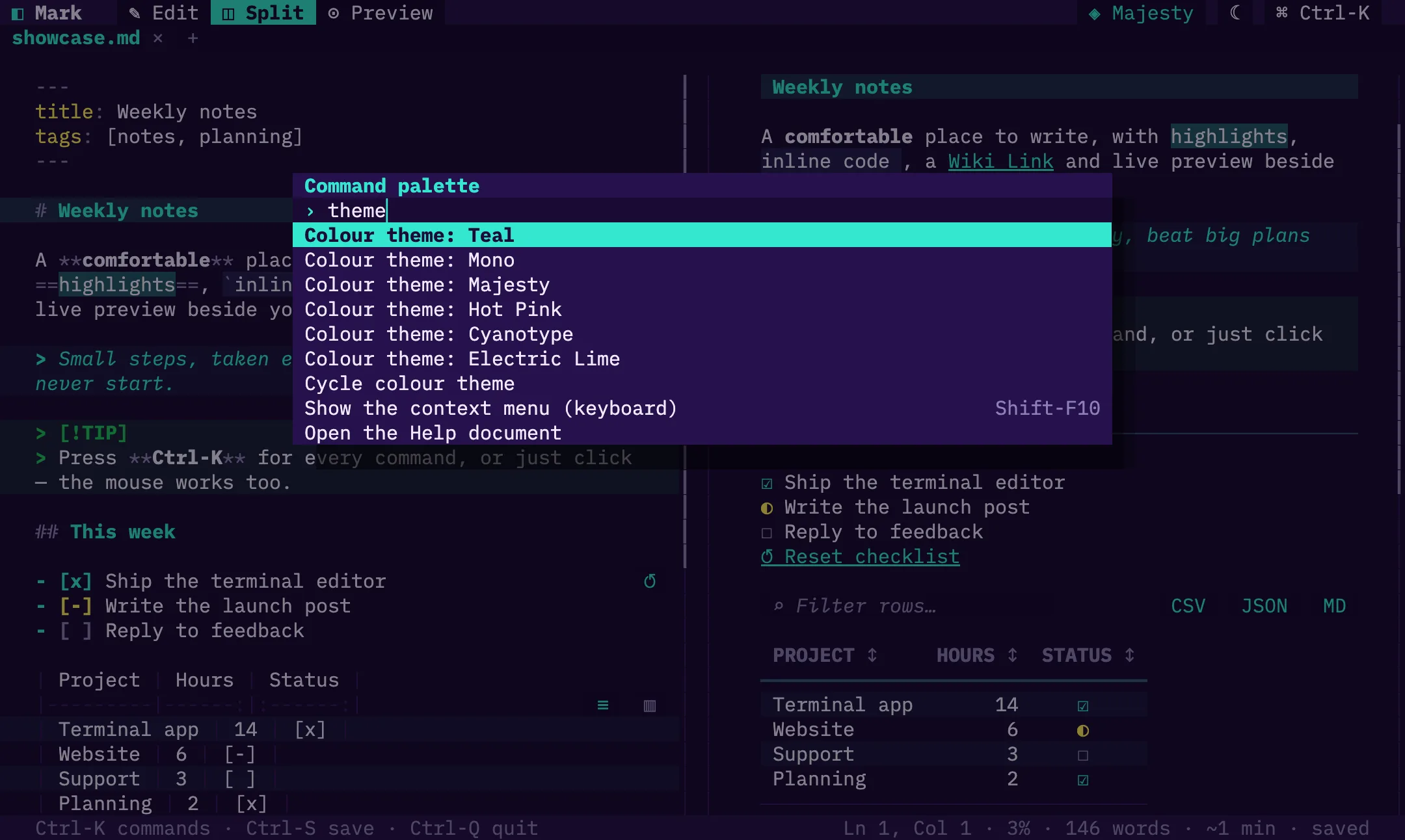
Small buttons, right where they help
Put the caret in a table and it offers to tidy or sort columns; in a checklist, to reset it; in a list, to renumber; on a link with no definition, to add one. They stay quiet until you need them.
- Each is also a palette command, and each is a single undo.
- None of them ever touch your code blocks.
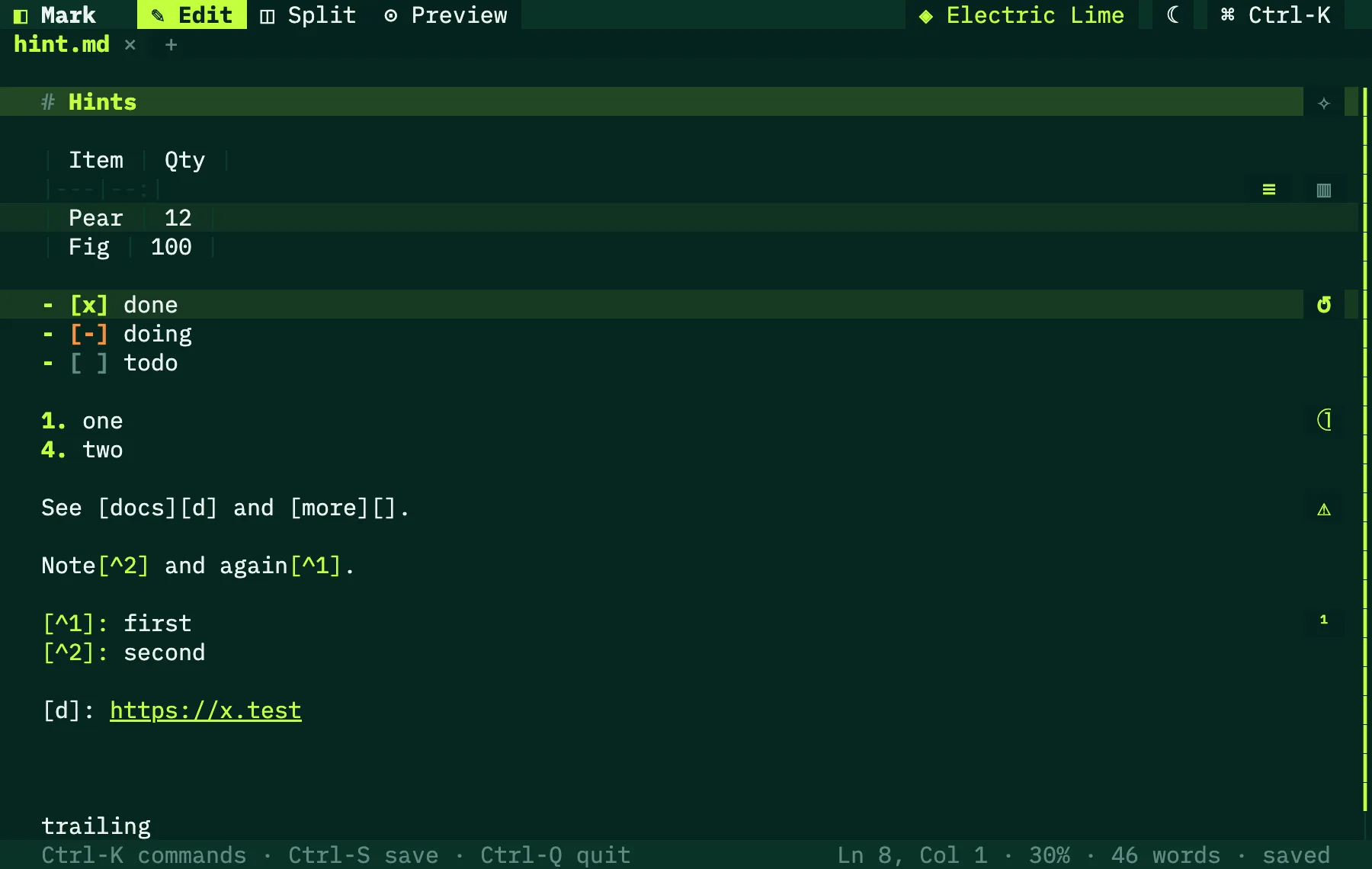
Light, dark, and yours
Cyanotype, Majesty, Electric Lime, Hot Pink, Teal, Mono — each a hand-tuned light and dark pair, or give it any colour you like and the whole interface follows. It can follow your system's appearance too.
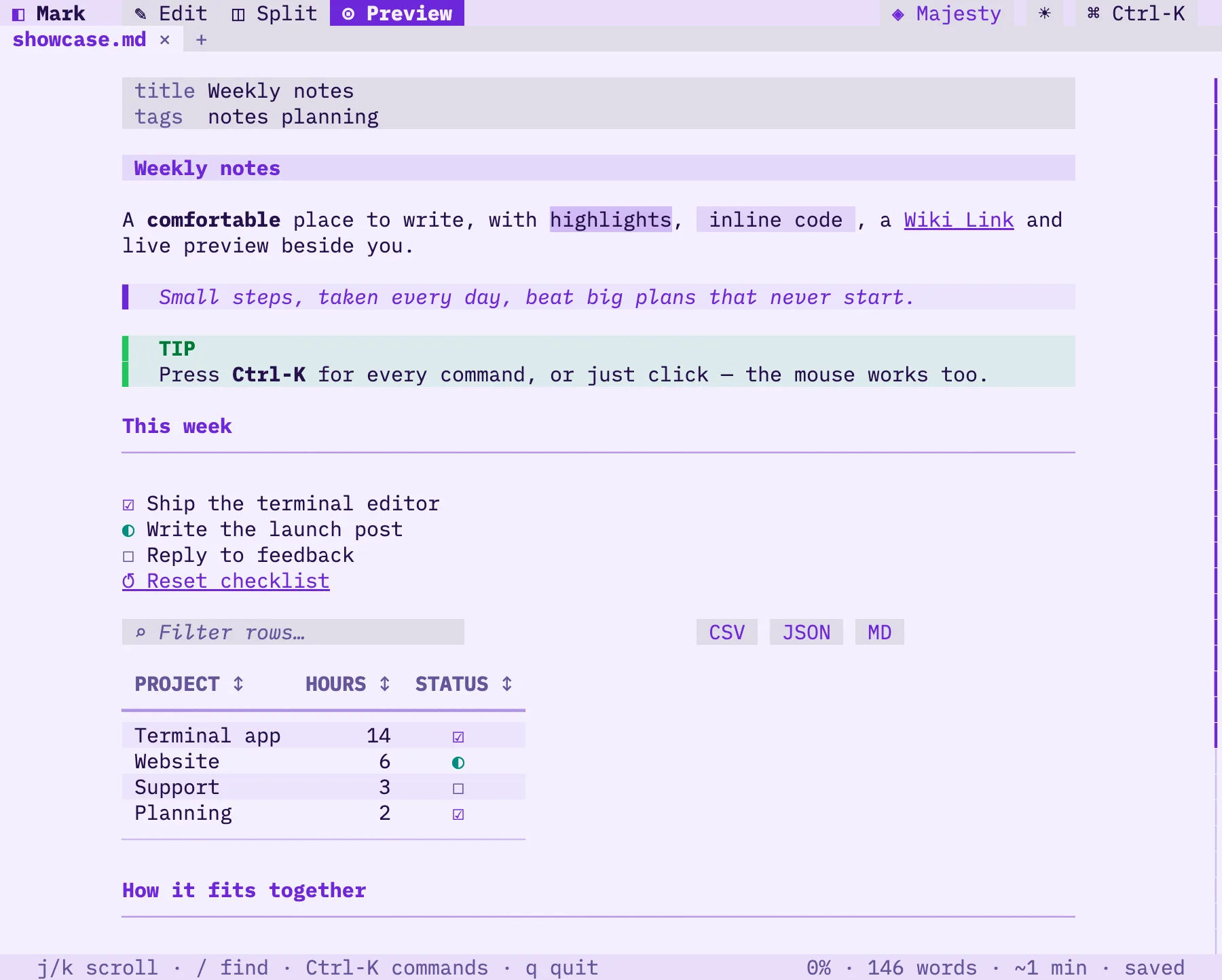
Mermaid, drawn without a browser
Write a diagram in a fenced block and see it laid out in line-drawing characters, coloured from your theme. Wide ones expand full-screen with pan and zoom.
Images inline, thumbnails with a play button
Pictures draw in the page — sharp native graphics where the terminal supports them, colour half-blocks everywhere else. Paste a YouTube link and it becomes its thumbnail; press Enter to watch.
At home on a server, a laptop or a phone over SSH
Nothing to install on the machine you're connecting from — just a terminal. If it speaks mouse, you can click and drag; if it doesn't, everything has a key.
| Ctrl-K | Command palette — or p / : in the preview, handy where Ctrl is awkward (phones, SSH apps) |
| Tab Enter | In the preview: walk links, checkboxes, table headers and buttons, and activate them |
| Ctrl-1 2 3 | Edit, split or view only — or Ctrl-\ to cycle |
| ? | Every shortcut, in a searchable list |
mark doctor | Shows what your terminal supports (colour, pictures, keys, mouse) and tunes Mark to match |
Download for Mac or Linux
Self-contained — it carries its own Node.js, so there's nothing else to install and no admin rights needed. Version 0.1.0.
Not sure which Mac? Apple menu → About This Mac: “Apple M…” is Apple Silicon, “Intel” is Intel. On Linux, uname -m prints x86_64 or aarch64.
About 40 MB each. Linux builds need a glibc distro (Debian, Ubuntu, Fedora, Arch…; not Alpine).
Then unpack and run the installer — it puts mark in ~/.local/bin, and ./install.sh --uninstall removes it:
$ tar -xzf mark-md-0.1.0-*.tar.gz && cd mark-md-0.1.0-*/ && ./install.shChecksums: SHA256SUMS
Then open a file:
$ mark notes.mdIt installs as mark (and mark-md).
mark view file.md opens a read-only viewer · mark file.md | less -R renders once to the pager · cat file.md | mark works too.
Good to know
Is it free?
Yes — free to install and use.
How is it related to the Mark app?
Same Markdown dialect, same colour themes, same look. Notes you write in either open in the other — they're just files.
Which terminals work best?
Anything with true colour. For the sharpest pictures use iTerm2, kitty, Ghostty or WezTerm; Apple's Terminal works with colour half-blocks. Run mark doctor to see what yours supports.
Does it phone home?
No accounts, no analytics. The only network request it ever makes is to fetch an image or video thumbnail you've linked, and you can turn that off with --offline.